
Blog
July 20, 2026

ZendHQ's JobQueue feature was built such that it always runs against UTC. Most of the time, this is not an issue, but when defining recurring jobs, Daylight Saving Time changes in the system clock can lead to those jobs running twice or being skipped entirely. Because ZendHQ caches its job schedules in memory, changing the system time or updating database values will not shift the execution targets of these jobs.
Zend will release changes to ZendHQ later in 2026 that will accommodate DST changes. For the time being, this guide details a non-disruptive, automated architecture for updating ZendHQ JobQueue cron hours dynamically using PHP, Bash, and the IBM i subsystem architecture. It assumes you have configured ZendHQ, an extension for ZendPHP runtimes, to run on your particular database.
If at any point you need additional assistance while reading this guide, please make sure to contact Zend to speak with one of our PHP IBM i experts.
Free Demo
Advanced Observability Tooling for PHP Applications
ZendHQ makes it easy to monitor, inspect, optimize, automate, secure, and scale mission-critical PHP IBM i applications. Learn more about how it can improve your observability processes.
Operational Flow Summary
Managing seasonal DST and timezone offsets in ZendHQ cron jobs can be completed using a simple script. The script operates via an automated, multi-step lifecycle to handle your ZendHQ JobQueue timezone transitions safely:
[System Scan] ➔ [Timezone Sync] ➔ [Engine Detect] ➔ [Data Simulation] ➔ [Production Push]
Let's go through each of these steps individually.
System Architecture Scan
The system architecture scan automatically detects the underlying OS (in this case, IBM i), to map binary configuration and environment paths. It checks the active PHP binary path to load the correct version-specific php.ini file. It also isolates the specific fallback paths for php.ini across platforms (e.g., /qopensys path on IBM i)
Timezone Verification and Parametric Fallbacks
This step extracts the date.timezone directive from the active php.ini.
If empty, it prompts the operator with a real-time searchable text field via a dropdown menu, and it logs the baseline clock offset into a text file (cron_tz_state.txt). Depending on your configuration, the exact method for accomplishing this may vary:
- Web UI Fallback — If the
php.initimezone directive is unpopulated, the web interface will automatically catch the missing value and display an interactive, real-time timezone dropdown menu. Then you will simply select the target operations zone from the list and submit the form to initialize the baseline tracker, eliminating the need to manually append parameters to the browser URL string. - Command Line Interface (CLI) Fallback — If run via the terminal, the script pauses and prompts the administrator for an interactive keyboard string input (STDIN) to define the active timezone environment.
Database Engine Auto-Discovery
Database engine auto-discovery is completed by reading zendhq.ini to discover the database target, such as SQLite, MariaDB, MySQL, or PostgreSQL.
If a network database model is identified, it extracts secondary host connectivity credentials, ports, usernames, and masks password strings for safety from the linked sub-configuration files (zendhqd_mysql.ini or zendhqd_psql.ini).
Pre-Flight Simulation Grid
To simulate the data, this step connects the database and pulls recurring tasks from jobqueue_jobs (skipping high-frequency crons like */5). It calculates the current numeric offset difference against historical runtime configurations to evaluate whether the application must shift its internal cron hours forward or backword.
Before making modifications, it calculates seasonal shifts and prints a side-by-side comparison table.
Production Push Execution
The production push will vary depending on which database you are using:
- For SQLite, you will connect to target databases using a unified PDO layer
- Note: The active file architecture is cloned to an isolated sandbox target file (jobqueueTZ.db) when performing structural executions
- For MariaDB and MySQL, you will need the Zend PHP extension
phpXYzend-php-mysqlnd- WARNING: For MariaDB and MySQL engines, the script executes the modifications directly on the live active network schema rows, meaning it shifts cron metrics immediately inside the live production application tables without using intermediary staging tables
- For PostgreSQL, you will need the Zend PHP extension
phpXYzend-php-pgsql
This will parse out all expressions containing absolute numeric cron metrics, skipping high-frequency crons as in the data simulation step.
Back to topOperator Runbook and Usage Guide
Now that I have covered the operational flow of automating ZendHQ JobQueue timezone shifts, I will go through the basic steps of how to implement this automation. It can be completed in five basic steps:
- Select the timezone and initialize the baseline
- Review the warning dashboard and control actions
- Execute seasonal shifts
- (SQLite only) Configure live production file and folder permissions
- Deploy the PHP script
As I walk through these steps, I will provide an example of how they look in practice.
Step One: Select the Timezone and Initialize the Baseline
Begin by opening the script panel in your web browser. You will be presented with a standalone warning card containing an interactive timezone dropdown menu.
If a valid configuration exists inside your server's php.ini, the dropdown menu will automatically pre-selective your active timezone. In this example, it selected "Asia/Jerusalem" as the location. Review this selection, then click the blue "Initialize Script Baseline" option to accept and initialize the data layers.
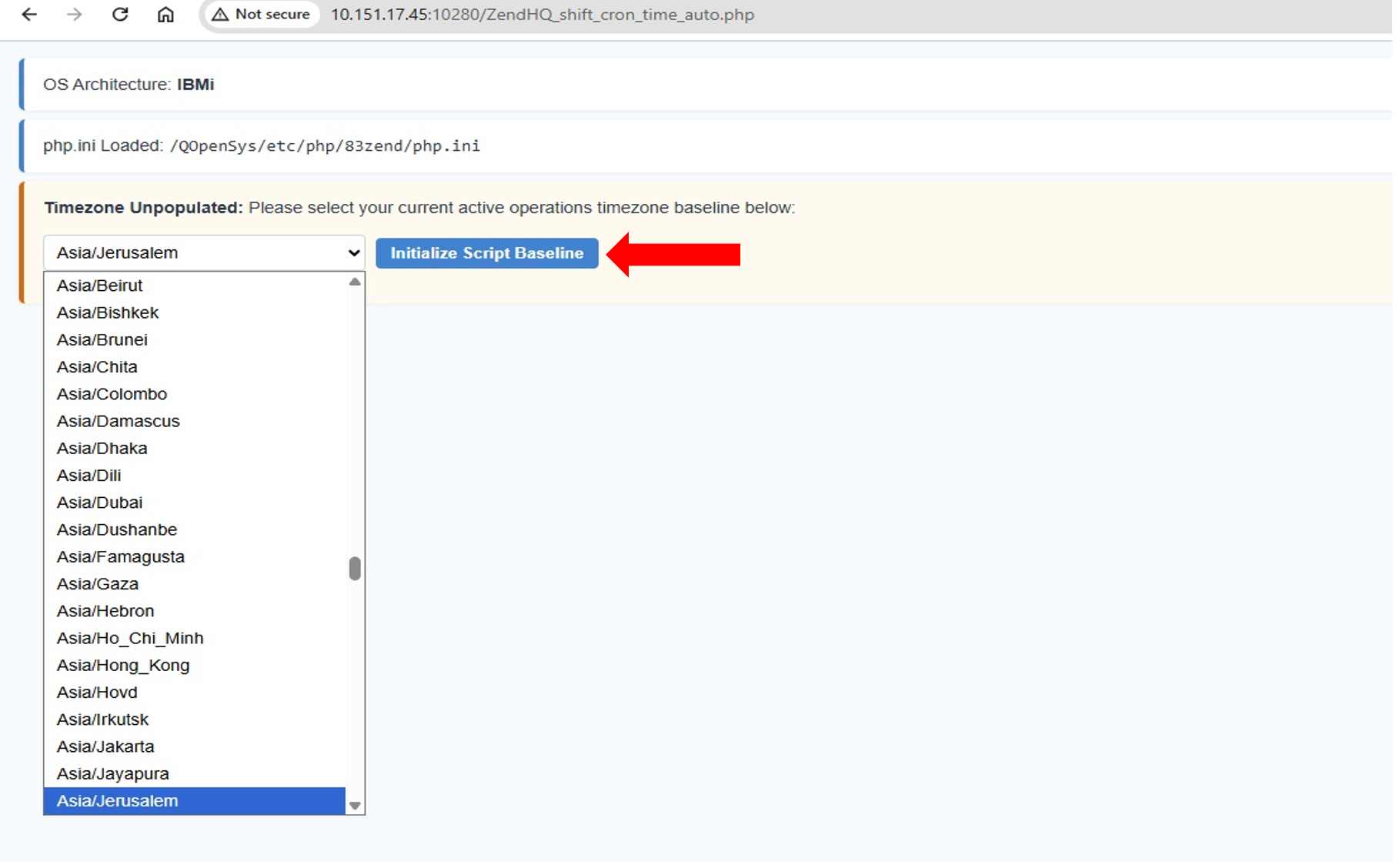
If you need to test a different region or override the server default, select your target operations zone manually from the dropdown list before clicking the button.
Step Two: Review the Warning Dashboard and Control Actions
Once the timezone form is submitted, the page automatically refreshes to read your database tables and unlocks the full operational dashboard layout. Review the system state message, noting that on a normal operations day, the page will display a bright red container showing your custom chronological guard string. It should read "System clock offsets match tracking logs (UTC+3). It is NOT the correct day for a seasonal Timezone Shift, as pictured below:
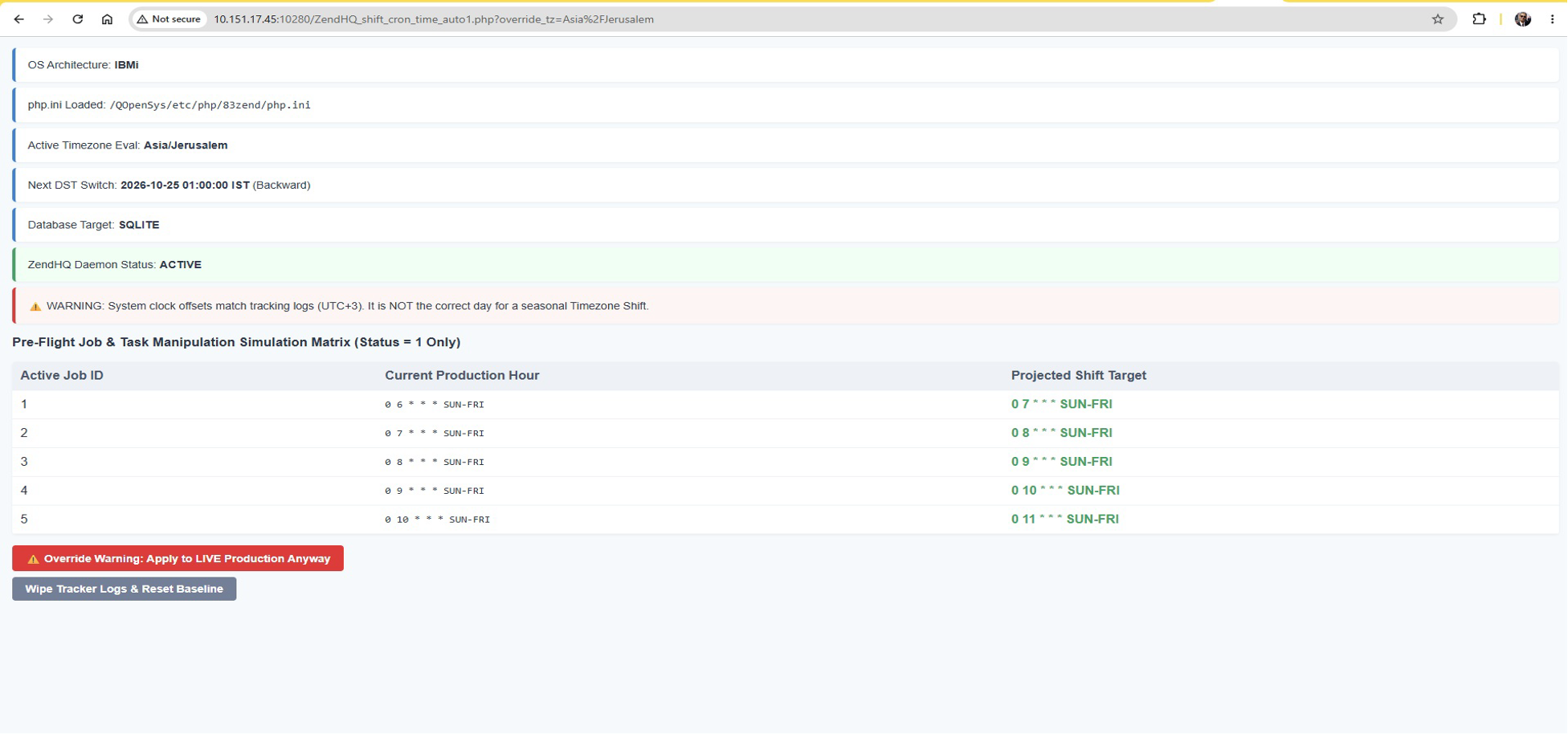
Review the printed server architecture data, active configuration file connection strings, and the Pre-Flight Job & Task Manipulation Simulation Matrix (Status = 1 Only) to verify that the projected cron hours look mathematically correct. You will then scroll to the bottom of the page underneath your simulation grid table to find your action controls:
- Use the gray "Wipe Tracker Logs & Reset Baseline" button to instantly clear your environment state cache file (
cron_tz_state.txt), delete local staging data, and return to the Step 1 timezone initialization screen, noting that no update occurs - Use the main execution action button next to it to apply modification to your active tables
Step Three: Execute Seasonal Shifts
How you execute seasonal shifts will depend on if you are using a web browser interface or running via CLI. I will go through each here.
When Running via Web Browser Interface
When the calendar date passes and your server timezone transitions naturally, refreshing this script catches the offset discrepancy against your saved baseline log for an automatic shift. The action button will turn green, allowing a safe execution to run.
If you need to test or force an immediate hour change to production rows on a normal day, click the red button that reads "Override Warning: Apply to LIVE production Anyway" button, shown below.
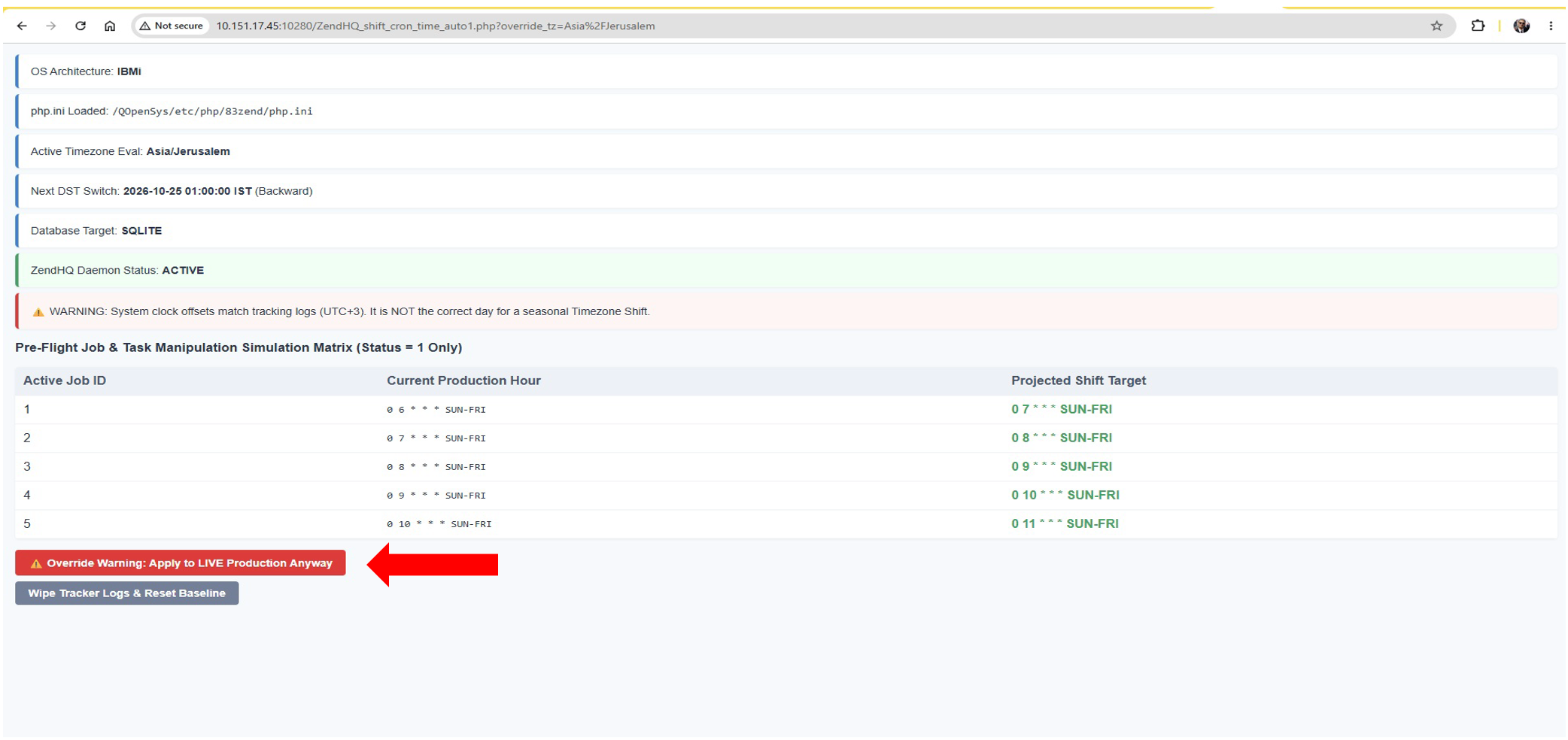
After clicking execute, the script commits your data, updates the baseline tracking log, and prints a final confirmation box on screen that should read: "Success Loop Terminated: LIVE Production database updated (Jobs & Tasks). Modified parent records: 5".
When Running via CLI
The terminal execution pathway is completely streamlined for automated headless scripts, system administration tools, or scheduler hooks (such as the native IBM i Job Scheduler ADDJOBSCDE). Unlike the Web UI, the CLI mode completely bypasses confirmation screens, approval buttons, or preview grids.
This means there are no safety gates. The exact moment you enter your target timezone parameter value inside the interactive terminal prompt and press Enter; the modification loop activates instantly. The script locks in the state tracking metrics and performs live updates to your core database table rows (jobqueue_jobs and jobqueue_tasks) in real time.
For example:
-bash-5.2$ php /www/zendphp/htdocs/ZendHQ_shift_cron_time_auto.php
[INFO] OS Architecture: IBMi
[INFO] php.ini Loaded: /QOpenSys/etc/php/83zend/php.ini
Enter Timezone: Asia/Jerusalem
[INFO] Active Timezone Eval: Asia/Jerusalem
[INFO] Next DST Switch: 2026-10-25 01:00:00 IST (Backward)
[INFO] Database Target: SQLITE
[SUCCESS] LIVE Production database updated (Jobs & Tasks). Modified parent records: 5
Step Four (SQLite Only): Configure Live Production File and Folder Permissions
Note: This step is mandatory for SQLite environments but does not apply if ZendHQ is configured for MariaDB or PostgreSQL network schemas.
For the script to execute write operations and successfully modify live rows when using an embedded database, the web server user profile (QTMHHTTP) requires direct directory-level authorization to spawn temporary transaction journal lock files inside the production directory.
Run these commands on your standard IBM i command line (5250 Terminal) or via an SSH terminal session:
- Grant Recursive Read, Write, and Object Authorities to the Web Server User — This recursive command pushes full data permissions and object control attributes down into the database directory and every underlying database file in a single step:
CHGAUT OBJ('/opt/zend/zendphp/var/db') USER(QTMHHTTP) DTAAUT(*RWX) OBJAUT(*ALL) SUBTREE(*ALL)
$ chmod -R 775 /opt/zend/zendphp/var/db
- Establish Baseline Public Restrictions — This ensures that the general system public retains standard read and execute access without risking unauthorized schema alterations or file corruption:
CHGAUT OBJ('/opt/zend/zendphp/var/db') USER(*PUBLIC) DTAAUT(*RX)
$ chmod -R o=rx /opt/zend/zendphp/var/db
Step Five: Deploy the PHP Script
Begin by creating a blank file named ZendHQ_shift_cron_time_auto.php inside your web server's production application directory (e.g., /www/zendphp/htdocs/).
Next, you will deploy the automation code. Carefully copy the provided PHP script code and paste it directly into the file. This code is provided beneath this section. Ensure the paste action captures the entire block with no truncation or cutoffs. Once saved, this script handles the production-ready automatic adjustment of cron timezones.
You will then be able to run the script from the browser: http://IBMi_IP_Address:10280/ZendHQ_shift_cron_time_auto.php
- Note: As described in the "System Architecture Scan" step of the Operational Flow, make sure to check and define the correct timezone value used by the date functions. If no entry exists, a dropdown menu will open to select the correct timezone value for your Daylight Saving Timezone.
ZendHQ_shift_cron_time_auto.php is available here as a .txt file. To use it, you will need to remove the .txt extension.
The Bash Wrapper Script (IBM i Only)
When running the script on IBM i, you will also need to deploy a Bash wrapper script.
How to Use Notepad++ safely for IBM i Bash Scripts
Notepad++ defaults to Windows format (CRLF) unless you explicitly tell it to switch to Unix format. When you paste text into a Notepad++ tab and save it to IBM i, Windows injects hidden Carriage Return characters (\r) at the end of every single line, breaking the Bash interpreter.
To use Notepad++ without corrupting your files, you must change the format to Unix before you save it. Follow these steps:
- Paste your code into a new tab in Notepad++
- Look at the bottom-right corner of the Notepad++ status bar, and you will likely see Windows (CRLF)
- Go to the top menu and select: Edit ➔ EOL Conversion ➔ Unix (LF)
- Notice the bottom-right corner status bar changes to Unix (LF)
- Save the file as ZendHQ_cron_shift.bash, file type ‘UNIX Script File’ and upload it to IBM i
Creating the Bash Script File
Create a Bash script file named ZendHQ_cron_shift.bash and paste the following code:
#!/qopensys/pkgs/bin/bash
# Script Name: ZendHQ_cron_shift.bash
# Purpose: CLI Wrapper to bypass interactive PHP STDIN prompts on IBM i / Linux
# 1. Capture the Timezone argument ($1) passed to this bash script
TARGET_TZ="$1"
PHP_SCRIPT_PATH="/www/zendphp/htdocs/ZendHQ_shift_cron_time_auto.php"
# 2. Check if a timezone parameter was provided
if [ -z "$TARGET_TZ" ]; then
   echo "[ERROR] No timezone provided."
   echo "Usage: ./ZendHQ_cron_shift.bash <Timezone_String>"
   echo "Example: ./ZendHQ_cron_shift.bash Asia/Jerusalem"
   exit 1
fi
# 3. Verify the PHP script exists before trying to run it
if [ ! -f "$PHP_SCRIPT_PATH" ]; then
   echo "[ERROR] Targeted PHP file not found at: $PHP_SCRIPT_PATH"
   exit 1
fi
# 4. Execute the PHP script, piping the Timezone value straight into STDIN
echo "[BASH] Initiating automated headless time-shift sequence..."
echo "$TARGET_TZ" | /qopensys/pkgs/bin/php "$PHP_SCRIPT_PATH"
To ensure the automated process can execute the script successfully, you need to grant the appropriate runtime authorities. If a specific service account or user profile runs the script, substitute that profile name for <USER_PROFILE>, Otherwise, use the *PUBLIC user profile.
Run these commands from your terminal:
$ setccsid 1208 /www/zendphp/htdocs/ZendHQ_cron_shift.bash$ chmod 755 /www/zendphp/htdocs/ZendHQ_cron_shift.bashCHGATR OBJ('/www/zendphp/htdocs/ZendHQ_cron_shift.bash') ATR(*CCSID) VALUE(1208)CHGAUT OBJ('/www/zendphp/htdocs/ZendHQ_cron_shift.bash') USER(<USER_PROFILE>) DTAAUT(*RWX) OBJAUT(*ALL)
Now you can call the Bash script using SSH terminal, and it will feed the timezone parameter into the PHP engine without waiting for human interaction:
-bash-5.2$ /www/zendphp/htdocs/ZendHQ_cron_shift.bash Asia/Jerusalem
-bash-5.2$ /QOpenSys/pkgs/bin/bash -c "/www/zendphp/htdocs/ZendHQ_cron_shift.bash Asia/Jerusalem"
[BASH] Initiating automated headless time-shift sequence...
[INFO] OS Architecture: IBMi
[INFO] php.ini Loaded: /QOpenSys/etc/php/83zend/php.ini
Enter Timezone: [INFO] Active Timezone Eval: Asia/Jerusalem
[INFO] Next DST Switch: 2026-10-25 01:00:00 IST (Backward)
[INFO] Database Target: SQLITE
[SUCCESS] Real production database updated. Modified jobs: 6
To fully automate this script so it runs without anyone needing to open a browser panel, you can use the IBM i Native Job Scheduler.
Step One: Create the Automated Control Command
Use the native IBM i command QP2SHELL to call the system's open-source PASE environment and run your Bash wrapper script (ZendHQ_cron_shift.bash) created in previous step.
The command looks like this:
SBMJOB CMD(CALL PGM(QP2SHELL) PARM('/QOpenSys/pkgs/bin/bash' '-c' '/www/zendphp/htdocs/ZendHQ_cron_shift.sh Asia/Jerusalem')) JOB(ZHQ_DST) JOBQ(QBATCH)Step Two: Add the Job to the IBM i Scheduler
Run this command on your standard IBM i green screen command line (5250 Terminal) to lock the daily schedule in permanently:
ADDJOBSCDE JOB(ZHQ_TZ_CHG)
          CMD(CALL PGM(QP2SHELL) PARM('/QOpenSys/pkgs/bin/bash' '-c' '/www/zendphp/htdocs/ZendHQ_cron_shift.bash Asia/Jerusalem'))
          FRQ(*WEEKLY)
          SCDDATE(*NONE)
          SCDDAY(*ALL)
          SCDTIME('00:01:00')
          TEXT('Automated ZendHQ JobQueue Timezone DST Shift Sync')
Use the following command to confirm the job completed normally:
WRKSPLF SELECT(*ALL) JOB(ZHQ_TZ_CHG)Back to top
Final Thoughts
This automation synchronization script has been intensively tested and validated exclusively on ZendHQ for IBMi OS environments, leveraging unified transaction layers across SQLite, MariaDB/MySQL, and PostgreSQL database engines. All native file system permissions, character translations, and headless batch execution wrappers are tailored specifically to ensure stable operations within the IBM i PASE architecture.
If you run into any issues during implementation or would like to learn more about how to make the most of your ZendHQ deployment for IBM i, please reach out to Zend today. Our expert team is at your disposal and ready to make your mission-critical PHP possible.
Make Zend Experts Your Experts
From helping to automate ZendHQ JobQueue timezone shifts to IBM i modernization projects and beyond, Zend is here to help. Explore our Professional Services offerings and reach out today to learn more.